-->

Easy way to Unlock Huawei HSDPA Modems Free

HSDPA dongles are very famous in these days. Because most of are use HSPA dongles for browse internet.Unfortunately some dongles are locked to their service carrier.Unlocking dongles are very famous these days. Some Huawei dongle models are hard to get unlock sometime.Because Some tools are doesn't work properly..lets see, how to unlock this dongles in an easy way.


Step 1 : Go to this site

Step 2 : Now Sign in with GOOGLE + . You need to provide your email and password log in to it.
             (This is safe. don't worry about it. If you are not sure create new gmail account)

Google+_signin

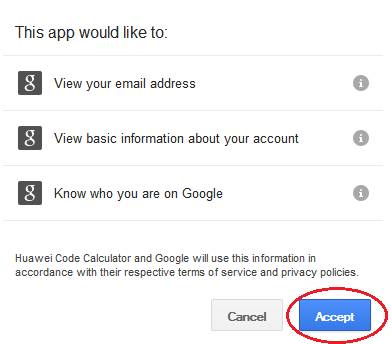
Step 3 : Now click accept button like below

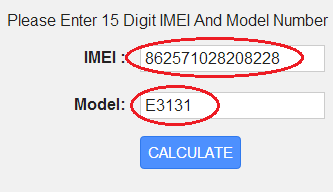
Step 4 : Next, Yo have to provide your Dongle IMEI number and Model like below and click
              calculate button.
dongle_details

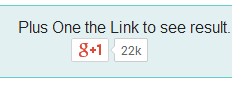
Step 5 : Now you need to  Click Google Plus button like below.

google+share

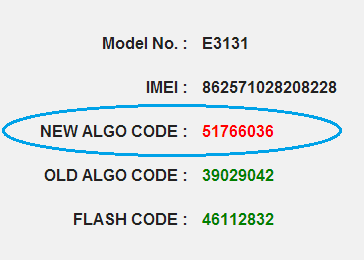
Step 6 : Now you will get the result like below. Use NEW ALGO CODE as for your unlock code.

new_algo_code

Add some other network sim card and  add the NEW ALGO CODE you generated for your dongle and enjoy.If it won't connect create new profile for your network. If you have any problem about huawei unlocking let me know.

Four Simple Tips To Improve Your Site’s Typography

I’m a writer, so naturally I think that all web design ought to start with my text; the rest of the page should be be built to complement what I have written. That way of thinking puts typography front and center. I’m not the only one who thinks so, but it’s an opinion that doesn’t hold much sway among web designers; it has even less traction with businesses and bloggers. And so typography doesn’t get the attention it deserves.
Typography matters because it is what makes a site pleasant to read. You might think you have written the most informative, moving, or hilarious article that ever saw the light of day, but if the typography is so bad that people go cross-eyed when they look at it, your brilliance is going to be wasted.


Typography is a complex art-science, but a few simple tweaks to a web page’s typography can make a huge difference to readability. I’m going to give you four tips and then point you in the direction of the web’s best typographic resource.

Stick To A Couple Of Typefaces

If you’re an experienced designer, you can do crazy things with font combinations and it’ll look great (probably). If you’re not a designer, don’t risk it. Stick with a couple of typefaces: preferably one for headings and one for body text. Using a serif for one and a sans serif for the other is a common choice — it’s not important if you use the serif for headings and the sans for body text or vice versa, both can work. Don’t try to be too smart with font combinations — two well suited fonts look great together; three poorly chosen fonts will ruin a page.

Consider Appropriate Sizes

Font sizes appropriate for print are too small for the screen. If you want people to read your content, for the love of Garamond, don’t make the text so tiny they have to zoom in or put their noses against the screen to see it.
Take a look at the text sizes on Medium for a approximation of how large your text should be, although be aware that the ideal size differs depending on the typeface, screen size, and screen resolution.

Line Spacing And Line Length

It’s not just the size of the text that matters, it’s the distance between the lines of text. Cramming the lines close together makes them difficult to read. Line spacing is controlled by the line-height CSS property, which should be set to a minimum of 1.2 times the height of the typeface and probably somewhat higher, but not much higher than 1.5 or the lines will look disassociated. Line length — the distance between the first and last characters of a line of text on the screen — should be somewhere between 50 and 90 characters. It should not stretch too far across the page and certainly not from one edge of the screen to another. Shorter lines are easier to read.

Only Underline Links

This one isn’t such a big deal, but it’s a personal irritation of mine so I’m going to include it. Underlining is not a useful habit except for links. Links should be the only text that is underlined. Underlining should not be used for emphasis — that’s what bold and italics are for. It shouldn’t be used for headings, where bolding, centering, altering type size, and altering typeface are all better options.
These four tips will do wonders for your site’s readability: use conservative font combinations, increase the type size, optimize line height and length, and remove underlining. But, there’s a lot more to typography than that, most of which you’ll find in Matthew Butterick’s excellent Butterick’s Practical Typography.

4 Desktop Blogging Applications For Writers

If you just write the occasional blog post, then WordPress/Blogger default editor is fine, especially since its recent update. But if you are like me and write several pieces each week (or sometimes even each day), then TinyMCE’s quirks can begin to grate. If your income depends on the content you’re writing, it’s not wise to trust browser based writing environments  it’s more than likely that nothing will go wrong, but I’ve experienced too many accidental refreshes and otherwise disappearing content to entrust my productivity to a web-based editor.


Thankfully, I don’t have to. There are plenty of desktop applications that integrate well with WordPress, allowing bloggers to write and publish their content without ever looking at the blogger admin dashboard. In this article, I’d like to take a look at my favorites.

Byword / Marked Application

When I’m working on a Mac, the combination of the Byword text editor and the Marked markdown previewer is by far my favorite writing environment. I’ll focus on Byword here, but Marked has some very useful features, including link validation, keyword highlighting, readability statistics, and the ability to show previews with user-supplied CSS scripts.

Byword is a text editor. On the face of it, Byword is a very simple application. For me, that’s a great thing. I just want to sit down and type, but, although it looks simple, Byword actually quite feature-rich — with exactly the right features, too. Byword uses Markdown for formatting, which is a straightforward markup language that anyone can learn in an hour — and they should: it makes a huge difference to the writing experience and productivity. Byword offers excellent Markdown support, with easy-to-remember keyboard shortcuts for adding titles, links, lists, and so on.

But Byword wouldn’t deserve palace on this list if it couldn’t publish to WordPress. In fact, Byword can publish to WordPress, Blogger, Tumblr, and Evernote. Publishing is a Premium feature, but it’s not expensive and well-worth the price to omit the cut-and-paste-into-Wordpress stage of blogging.
Because Byword is available for the Mac, iPad, and iPhone, users can publish from anywhere.

Marsedit desktop blog editor

This is another tool for the Mac users out there. I couldn’t write a post about desktop blogging software without including Marsedit, the blogging tool of choice for many, including John Gruber, creator of Markdown, although Marsedit does brilliantly with Rich Text too.

Byword is an excellent text editor for writers, but Marsedit is a full-fledged blog editing tool, which is compatible with WordPress, Tumblr, Typepad and dozens of other content management systems. It features excellent media support, with one-click image insertion from a variety of sources. If you like, you can even integrate your favorite text editor with Marsedit, including BBEdit and TextMate.

Windows Live Writer

Windows Live Writer is getting a little long in the tooth, but it’s still the best Windows tool for publishing to WordPress. It offers many of the same features as Marsedit, except without the Markdown support. If you’re a WordPress blogger who prefesr to work in a Windows environment, Windows Live Writer should be your first port of call.

Blogilo Editor

Last, but certainly not least, is a tool for our friends who prefer the Linux desktop. Blogilo features a WYSIWYG and HTML editor, with previewing that matches your blog’s style. Users can create, modify, and delete posts, as well as schedule publication.

These four are my favorites, but they’re far from the only options. What do you use? Let us know in the comments below.

7 Reasons Not to Write a Personal Blog

Here you will find out why you shouldn’t write a personal blog, and some reasons why you should not write any sort of blog at all. There are plenty of articles on the Internet that claim blogging will get you rich and is fun and is the greatest thing since the invention of the car, but they are often posted to get people to buy blogging services such as hosting, content management systems and SEO (Search Engine Optimization) services. Here are some reasons why a personal blog is a bad idea.

You do not get paid to write a blog and it is work

You could be getting paid for the writing you are doing. When you write a blog post that is work. It is something that people are sat in offices doing right now and they are getting paid for it. Blogging may not seem like work at first, but after a few months it will be a slog, and you are not being paid for the slog. You are working for free and there is no way your affiliate money is going to fairly cover the amount of work you are doing. You could put the same amount of time into sweeping roads and make thirty times more than you are going to make via blogging.

It is not going to make you affiliate money in the way you think it will

Most people are disappointed by the amount of traffic they receive and amount of affiliate money they receive, and yet it is blindingly obvious if you think about it. How many personal blogs do you read? How many do your friends read? You may read the occasional blog about something that interests you, but do you read many “personal” blogs? Furthermore, how often do “you” click on affiliate adverts when you are on the Internet? Most of your clicks over the last year were probably by accident.

Few people want to read your thoughts unless you are famous

This is just a sad fact. You are not special and you are not coming up with anything that thousands of others have not come up with before you. If you think you are being original then you are not researching hard enough.

Most people run out of things to write about very quickly

This happens to most bloggers and is the number one reason why most blogs do not last longer than six months. They usually come to a halt when the hosting services expire. You are going to run out of things to write about very soon.

Most of your personal blog posts are not evergreen

An evergreen article is one that is still relevant and readable after a few months or years. For example, an article about heartbreak may be relevant for decades, but an article about how to program your VCR to record when you are out is not evergreen. Many of the personal things you write about are going to expire very quickly, which means that new readers are not going to be able to look over your old posts they will only read your most recent posts, which may make it harder to keep your readers.

There are plenty of other things you could be doing that are longer lasting

You could be carving wood figurines instead of blogging. It may not be spread around the Internet like your blog, but it will have more value and it will last longer. You could be taking a course in fixing cars or decorating houses. You could be making your dreams come true, instead of blogging onto a platform that you will probably delete in a few months when you are bored with it.

Getting no traffic and/or reading criticism will hurt your feelings

Working for six months and still having no traffic is heart breaking. It is horrible to find yourself pouring your heart into working on your blog, only to discover that nobody is reading it. The worst thing is when you do receive traffic and comments and they are negative. Some people enjoy criticizing because it makes them feel important and superior, and you are going to get that sort of thing on your comment section, and there is a chance it is going to hurt your feelings. 

Memilih Niche Blog Yang Ramai Pengunjung

Sebelum mulai membuat blog baru di blogspot/blogger Anda harus menentukan dahulu niche apa yang akan dipilih untuk blog Anda nantinya. Hal ini perlu agar nantinya blog Anda bisa ramai untuk dikunjungi, bila blognya dijadikan sebagai ladang mencari uang.

Disini Saya akan menjelaskan niche blog yang paling banyak dicari, Saya akan berbagi sedikit tentang Niche Blogging yang banyak dicari dan ramai pengunjug.


Niche Blogging

Blog Tentang Berita

Pada zaman sekarang perkembangan dunia dapat dipantau melalui internet, setiap - detik pasti selalu saja ada berita yang ditulis di Internet. Oleh karena itu niche blog tentang berita paling banyak dicari oleh pengunjung karena sifatnya tak kenal waktu pasti ada saja berita.

Blog Tentang Teknologi

Perkembangan teknologi sudah sangat berkembang pesat saat ini, dengan ini banyak orang mencari inovasi - inovasi baru tentang teknologi di internet. Teknologi menjadi paling banyak dicari karena perkembangan gadget di masa sekarang yang tak kenal habisnya, untuk mendapatkan informasi itulah banyak orang mencari informasi tentang gadget.

Blog Tentang Tutorial

Ini dia niche blog yang ramai pengunjung dan masih banyak dicari oleh pengguna yang masih awam. Tutorial ini bisa berupa tutorial Blogger, tutorial WordPress, tutorial Android, tutorial komputer dan lain sebagainya. Semakin banyak belum diketahui oleh pengunjung semakin ramai akan pengunjung, bahkan dari niche ini bisa mendapat ratusan hingga ribuan pengunjung.

Blog Tentang Kesehatan

Blog tentang kesehatan pun banyak juga dicari di mesin pencari, seperti cara cepat diet, cara cepat menurunkan badan dan kata kunci lainnya. Niche ini banyak dicari karena kebutuhan mereka akan kesehatan.

Blog Tentang Otomotif

Tak kalah otomotif juga banyak dicari di Google, sama seperti teknologi perkembangan otomotif yang pesat menjadi alasan niche blog ini banyak dicari pengunjung.

Blog Tentang Download Software dan Game Gratis

Inilah niche blog yang paling banyak dicari dan bahkan bisa mencapai ratusan ribu pengunjung, orang - orang begitu ramai untuk mendapatkan software dan game premium tapi gratis. Niche blog ini sangat menguntungkan, karena tak jarang blog yang membahas ini bisa mendapat banyak traffic.

Blog Tentang Download Film Anime dan Manga

Anime dan Manga sudah menjadi tontonan dan bacaan favorit orang - orang Indonesia buktinya banyak sekali traffic yang ada pada kata kunci film anime dan manga ini. Ini sungguh menguntungkan karena sudah banyak blog/website yang sukses memuat konten seperti ini.

Blog Tentang Hal - hak Unik dan Aneh

Menurut Saya inilah niche blog yang tak kalah ramai dari niche blog diatas, karena artikel unik, nyeleneh dan aneh ini sangat banyak diminati dan dicari. Buktinya blog terselubung bisa sukses dengan menyajikan artikel - artikel unik dan aneh ini.

Itulah yang dapat Saya sampaikan mengenai niche blog yang tepat agar blog Anda ramai dengan pengunjung. Namun untuk memilih niche blog diatas Anda juga harus siap bersaing dengan ratusan bahkan ribuan blog yang sudah ada. Anda akan mendapatkan banyak kunjungan jika Anda sudah paham tentang SEO, menulis artikel berkualitas dan memilih kata kunci yang tepat.

Jadi sekarang Anda sudah siap untuk membuat blog baru di blogspot/blogger dan buatlah konten berkualitas agar blog Anda bisa menjadi number 1 di Google ;)

Tips Upload File Javascript Blog Ke Google Drive

Tip upload file javascript blog ke google drive


Teman-teman, disini saya akan menjelaskan tip agar file javascript ekternal yang anda di blog anda sebaiknya anda pindahkan saja semuanya ke google drive manfatnya antara lain:
  • Meminimalisir kemungkinan file eksternal javascript anda hilang atau rusak, karena anda tidak mengetahui file tersebut sebenarnya hosting atau berada dimana?
  • Mempercepat waktu loading blog anda
  • Jika anda memiliki sedikit pengetahuan tentang Javascript anda bisa mengupdatenya sesuai dengan keinginan anda.
  • Free space 15GB
Berikut ini saya jelaskan langkah yang perlu anda siapkan adalah:

1. Buat dan daftar akun googledrive anda
Masuk ke https://drive.google.com, ikuti prosesnya sangat mudah hanya beberapa tahap saja.

2. Buka template blog anda dan cari file javascript, bisa dengan mengetikan Control + F atau Find masukkan kata .js lalu find,

file template javascript

3. Copy alamat http:……. sampai dengan .js ke alamat browser.

4. Setelah terbuka, copy script tersebut ke notepad dan buatkan namanya sesuai keinginan misalnya: javascript1, jangan lupa menambahkan akhirannya .js seperti : javascript1.js dan save dokumen anda.


5. Buka googledrive, buat drive baru biar memudahkan anda mengelompokkan data, misalnya folder File Java
Tip upload file javascript blog ke google drive1

6. Masuk folder File Java klik tombol uplod file seperti dibawah ini filih files, lalu masukkan file javasript1 yang telah anda simpan sebelumnya dengan notepad.
Tip upload file javascript blog ke google drive2

7. Tandai atau centang file anda, lalu klik more, share, > pilih share
Tip upload file javascript blog ke google drive3

8. Klik tombol change, pilih public on the web, agar file anda bisa diakses untuk umum, lalu copy link di kotak link to share ke notepad.
Tip upload file javascript blog ke google drive4

9. Ubah link asli yang anda copy tersebut misal : https://drive.google.com/file/d/0B0U0a3NBJ0dFN0UxTDFORVNMYTg/edit?usp=sharing, dengan link baru menjadi: 
https://googledrive.com/host/0B0U0a3NBJ0dFN0UxTDFORVNMYTg
10. Ganti file javascript anda yang di template dengan link: https://googledrive.com
/host/0B0U0a3NBJ0dFN0UxTDFORVNMYTg
11. Simpan template anda, Selesai semoga bermanfaat

Cara Buat Target Twitter 100.000 Follower

Cara Buat Target Twitter 100.000 FollowerBagaimana Langkah menambah 100.000 Follower?

Saya akan berasumsi bahwa blog atau website Anda memiliki konten yang menarik. Konten yang memiliki judul yang baik, yang diterbitkan dalam berbagai jenis media, ditulis dengan baik dan terstruktur merupakan elemen penting dalam membangun pondasi jangka panjang bisnis online.
Mempromosikan bahwa anda memiliki informasi istimewa yang bisa membantu mereka memecahkan masalah mereka, membangun jaringan follower Twitter dalam jumlah besar adalah salah satu cara yang paling efisien untuk mendistribusikan konten tersebut.

Apa saja langkah-langkah utama yang harus anda tempuh?

Langkah Pertama: Buat Akun di Tweepi.com 

Proses registrasi sangat cepat, yang Anda butuhkan adalah sebuah account Twitter dan memasukkan beberapa informasi dasar tentang diri anda dan yang Terpenting dari semua itu content tersebut adalah "gratis".

Langkah Kedua: Follow Followers

Salah satu pendorong utama pertumbuhan di jaringan sosial adalah menciptakan daftar teman dan pengikut dari sinilah efek multiplier lalu lintas dan brand awareness. kunjungi dashboard utama Tweepi setelah Anda login dan klik pada tombol "Follow Follower"  

Bagaimana Langkah menjaring 100.000 Follower?

Langkah Ketiga: Cari teman yang memiliki Jumlah Follower yang besar

Sebagian besar dari kita pasti memiliki teman yang memiliki jumlah Follower yang sangat besar. Ketik nama teman anda tersebut misalnya "@prabowo08 " (memiliki 1,24M Follower) . ini hanya sebagai contoh carilah teman anda yang akunnya benar-benar aktif, Kemudian klik "Start Following".

Bagaimana Langkah menjaring 100.000 Follower?

Langkah Keempat: Follow para calon Follower anda

Setelah itu akan tampil halaman halaman para akun twitter yang akan anda following seperti dibawah ini, menurut pengalaman saya ini merupakan yang paling vital dalam keberhasilan anda mendapatkan follower, langkah yang saya anjurkan adalah sebagai berikut:
  • Coba anda short list berdasarkan Last Tweet, dan sebaiknya pilihlah akun yang akan anda Follow baru saja melakukan tweet dibawah satu jam (untuk memfillter akun aktif dan produktif), setelah itu anda bisa pindah ke halaman calon follower lain berikutnya seperti anda lihat gambar tab dikiri bawah.   
  • Lakukan terus sampai batas limit add follower biasanya untuk akun baru sampai dengan 2.000 follower Setelah Anda Follow 2.000 orang, Twitter menerapkan rasio yang menghentikan Anda setelah lebih dari rasio 10% lebih besar daripada jumlah Follower Anda.

Bagaimana Langkah menjaring 100.000 Follower?

Demikian semoga artikel ini bermanfaat untuk meningkatkan traffik situs yang baru anda bangun terutama buat para blogger pemula, karena biasanya artikel yang di submit belum sepenuhnya terindek oleh mesin pencari google serta belum bisa sepenuhnya bersaing dengan para webmaster.

Langkah-langkah atau Cara Menginstall Windows 8 Final

Sekarang Microsof sudah merilis Windows 8 versi final, yang sebelumya diluncurkan dan dibuat secara bertahap. Buat anda yang belum begitu mengetahui cara Install windows 8, berikut ini akan saya bahas langkah demi langkah cara menginstall windows 8 final lengkap dengan gambar ke komputer ataupun ke notebook dan laptop, baik menginstall melalui media DVD windows 8 ataupun melalui media USB Flashdisk.
Yang diperlukan dalam menginstall windows 8 yaitu CD/DVD instalasi windows 8, apabila belum punya bisa download terlebih dahulu kalau lemot bisa pinjam teman dulu :p

Langkah langkah Cara menginstall windows 8
- Langkah Pertama yang perlu anda lakukan adalah booting komputer Anda dapat menggunakan media instalasi Windows 8 (CD atau USB flashdisk). Jika Anda menggunakan mesin virtual, boot dari instalasi image Iso.
- Saat untuk memuat file setup Windows 8 memerlukan beberapa waktu, di mana Anda akan melihat tampilan sebagian besar layar hitam

- Langkah selanjutnya anda diminta untuk memilih bahasa, waktu dan pengaturan input keyboard yang akan anda  gunakan. Jika anda sudah menentukannya maka klik Next. Seperti contoh gambar berikut ini:
windows 8

- Langkah selanjutnya untuk memulai proses instalasi windows 8 anda Klik tombol “Install Now”
windows 8

- Selanjutnya memasukkan kunci produk yang diperlukan untuk mengaktifkan instalasi Windows 8 biasanya dicantumkan pada kemasan cakaram instalasi. Jika anda sudah memasukka kunci produk tersebut klik Next. Setelah instalasi selesai, Kunci produk yang sama akan diminta untuk mengaktifkan Windows 8. Perhatikan gambar berikut:
windows 8

- Langkah selanjutnya adalah persetujuan lisensi, anda centang kotak “I accept the license terms” lalu klik tombol Next

- Menentukan pilihan untuk memilih antara membuat upgrade atau instalasi custom. Saya sarankan Pilih “Custom: Install Windows only (advanced)”
windows 8
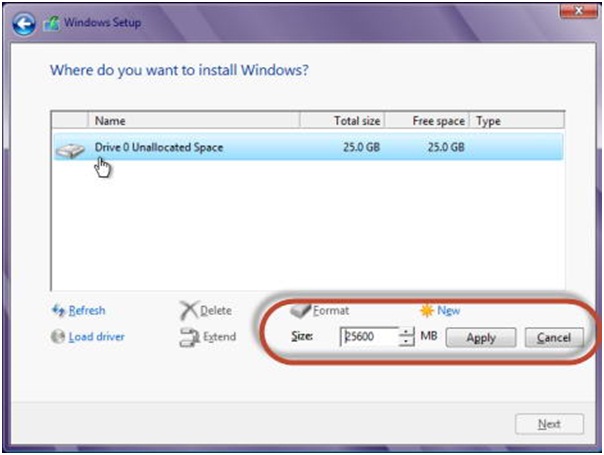
- Selanjutnya Anda diminta untuk memilih partisi yang akan anda install windows 8. Pilih partisi yang Anda inginkan dan klik Next.  Apabila Anda menginstal Windows 8 di mesin virtual/ pada komputer baru / komputer yang partisinya hanya satu Anda harus terlebih dahulu membuat partisi karena partisinya hanya satu jadi harus dipisahkan bisa melalui Drive Options.
windows 8
- Lalu, buatlah partisi baru dengan cara klik New.
- Anda tentukan ukuran partisi yang anda inginkan kemudian klik Apply
Perlu anda ketahui: Setidaknya Windows 8 memerlukan ruang harrdisk sebesar 10GB, Jika anda ingin menginstall aplikasi lain sebaiknya buatlah partisi sebesar 20 – 30GB atau lebih sesuai yang anda inginkan.
windows 8
- Langkah selanjutnya akan diminta untuk mengkonfirmasi. Klik OK.
- Pastikan partisi yang dipilih benar dan klik Next.
CATATAN: Pada tahap ini Anda juga dapat memformat partisi (menghapus windows lama) di mana Windows 8 akan diinstal, sebelum anda mengklik Next.
windows 8
- Setelah anda klikk next maka akan memulai proses instalasi. Tunggu beberapa menuit proses Setup untuk menyalin semua file yang diperlukan dan menginstal sistem operasi.
windows 8
- Jika instalasi sudah selesai, Secara otomatis Windows 8 setup akan mereboot sistem. Setelah itu, Anda akan melihat proses dari persiapan yang dibuat untuk login pertama
- Personalisasi Instalasi Windows 8
- Sesudah reboot selesai, Windows 8 akan memerlukan beberapa waktu untuk menyiapkan segala sesuatunya.
- Langkah berikutnya, Anda akan diminta memberikan nama untuk komputer Anda dan anda dapat, memilih warna background yang Anda inginkan. Selanjutnya, klik Next.
windows 8
- Apabila anda menginstal Windows 8 pada laptop atau perangkat dengan kartu jaringan nirkabel (wifi), maka anda akan diminta untuk memilih jaringan nirkabel untuk menghubungkan dan memasukkan password yang sesuai untuk koneksi ke jaringan wifi. Pada komputer atau perangkat yang terhubung melalui kabel ke jaringan, Anda tidak akan melalui langkah ini.
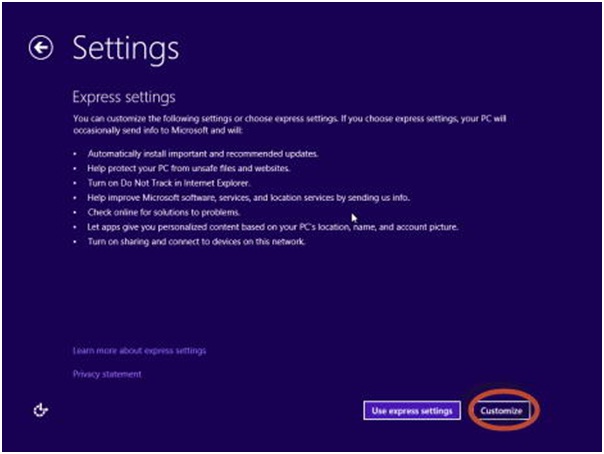
Selanjutnya, tentukan pilihan Express Setting atau Customize. Pada paraktek ini akan saya pilih opsi Customize, maka klik Customize.
windows 8
- Selanjutnya diminta untuk mengaktifkan file sharing atau tidak. Silahkan anda Pilih yang Anda inginkan.
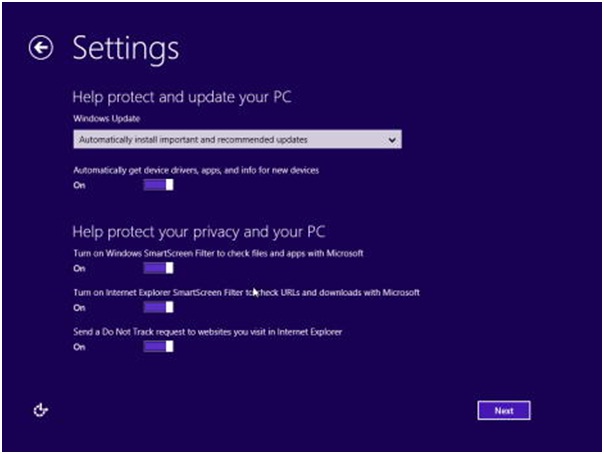
- Selanjutnya akan muncul pertanyaan untuk pengaturan yang diinginkan pada Windows update, fitur keamanan seperti Smartscreen Filter, Silahkan anda Seuaikan dengan kebutuhan anda kemudian klik Next.
windows 8
- Atur pengaturan apakah Anda ingin mengirim berbagai jenis informasi kepada Microsoft. Silahkan atur sesuai apa yang anda inginkan dan klik Next.
- Setelah itu, tampil pilihan apa yang ingin Anda nyalakan. Anda juga dapat mengatur jika aplikasi dapat menggunakan nama dan gambar akun, dan apabila mereka diizinkan untuk mengakses lokasi Anda. Atur sesuai apa yang anda inginkan jika sudah klik Next.
windows 8
- Sampai pada tahap “Sign in to your PC“. Saran saya yang terbaik adalah dengan menggunakan akun Microsoft (akun email hotmail yang dikenal sebagai Windows Live ID).  Ketik akun Microsoft anda dan klik Next.
windows 8
Catatan: klik link “Sign in without a Microsoft account”Apabila anda tidak masuk menggunakan akun Microsoft, di bagian bawah jendela kemudian ikuti petunjuk yang ditunjukkan oleh setup wizard.
- Selanjutnya, masukkan kata sandi /password akun Microsoft. Setelah itu klik Next.
windows 8
- Masukkan e-mail dan nomor telepon alternatif untuk memulihkan password account Anda,Ini untuk keamanan apabila suatu saat anda lupa atau diubah oleh orang lain. lalu klik Next.
- Silahkan tunggu beberapa saat hingga proses selesai.
- Jika semua telah selaesai, maka akan ditampilkan Start Screen Windows 8

windows 8
Demikian postingan kali ini mengenai Langkah-langkah atau Cara Menginstall Windows 8 Final.

Back To Top